For years, I’ve been using uBlock Origin in Google’s web browser. Recently, however, Google decided to remove support for Manifest V2, which uBlock Origin relies upon, from Chrome.
Background Information
Google has been planning to phase out Manifest V2 in favor of the new Manifest V3 in its Chrome browser since at least 2022, when it disabled the new creation of Manifest V2 extensions in the Chrome Web Store. One of the most controversial points of this change is that Google’s implementation of Manifest V3 removes the ability for extensions to block web requests, known as the webRequestBlocking feature of the webRequest API for extensions. Recently, over the summer of 2025, Google finally pulled all support for Manifest V2 from its browser and started forcing users to disable and delete certain Manifest V2 extensions, including uBlock Origin, a popular content blocker.
Or so we thought…
Turns out, Manifest V2 is actually still present in Chrome! All you need to do is simply add a few command-line arguments to the executable to re-enable support for it.
Here they are:
--disable-features=ExtensionManifestV2Deprecation,ExtensionManifestV2DeprecationWarning,ExtensionManifestV2Unsupported,ExtensionManifestV2Disabled
You can try launching Chrome from a command-line on your system using these flags. Then, if you uninstalled uBlock Origin, you will be able to reinstall it from the Chrome Web Store and use it as if nothing ever happened.
Command for Windows:
chrome.exe --disable-features=ExtensionManifestV2Deprecation,ExtensionManifestV2DeprecationWarning,ExtensionManifestV2Unsupported,ExtensionManifestV2Disabled
Command for Linux:
google-chrome --disable-features=ExtensionManifestV2Deprecation,ExtensionManifestV2DeprecationWarning,ExtensionManifestV2Unsupported,ExtensionManifestV2Disabled
How To Re-enable uBlock Origin Every Time
What follows is a two-part tutorial on how to change your desktop shortcuts to make this change permanent on Windows and Linux (jump to). Sorry Mac users: I don’t have a Mac to use for writing/testing a tutorial, but let me know down in the comments if you’ve gotten it to work!
Windows
On Windows, we will create a symbolic link to Chrome.exe. We then will use our symbolic link to create a new shortcut that launches Chrome with the command-line arguments specified above. We will preserve the old shortcut in case there are issues with the new shortcut down the road. I have tested this on Windows 11, but it should work on other (modern) versions as well.
1. Symlink Chrome.exe
In order for Windows to recognize both shortcuts in the start menu, we need a symbolic link to Chrome.exe. It’s important to note that a symbolic link is not the same as a shortcut. For the purposes of our tutorial, a symbolic link essentially allows a file to occur in two places at once.
To create a symlink, open the start menu, type in cmd.exe, right-click on Command Prompt and select Run as administrator.
Note: Windows (unlike Linux) requires administrative privileges to create symbolic links.
Then issue the following command by either copying and pasting or typing it into the console and pressing enter:
mklink "chrome2.exe" "C:\Program Files\Google\Chrome\Application\chrome.exe"
This will create a symbolic link called chrome2.exe in your home directory. If you’d rather not have this be in your home directory, you can specify another location for it. You can also hide it from the file explorer. However, I would not recommend hiding it because it can be harder to find later on in the tutorial. If you do want to hide it, you should do it after the last step of this tutorial. Hide chrome2.exe by browsing to it, right clicking, selecting Properties, selecting the General tab at the top, then checking the box marked hidden at the bottom. Show it by clicking View (below the address bar) -> Show -> Hidden Items.
2. Create Shortcut
Open the File Explorer. Copy the text below and paste it into the address bar at the top.
%AppData%\Microsoft\Windows\Start Menu\Programs
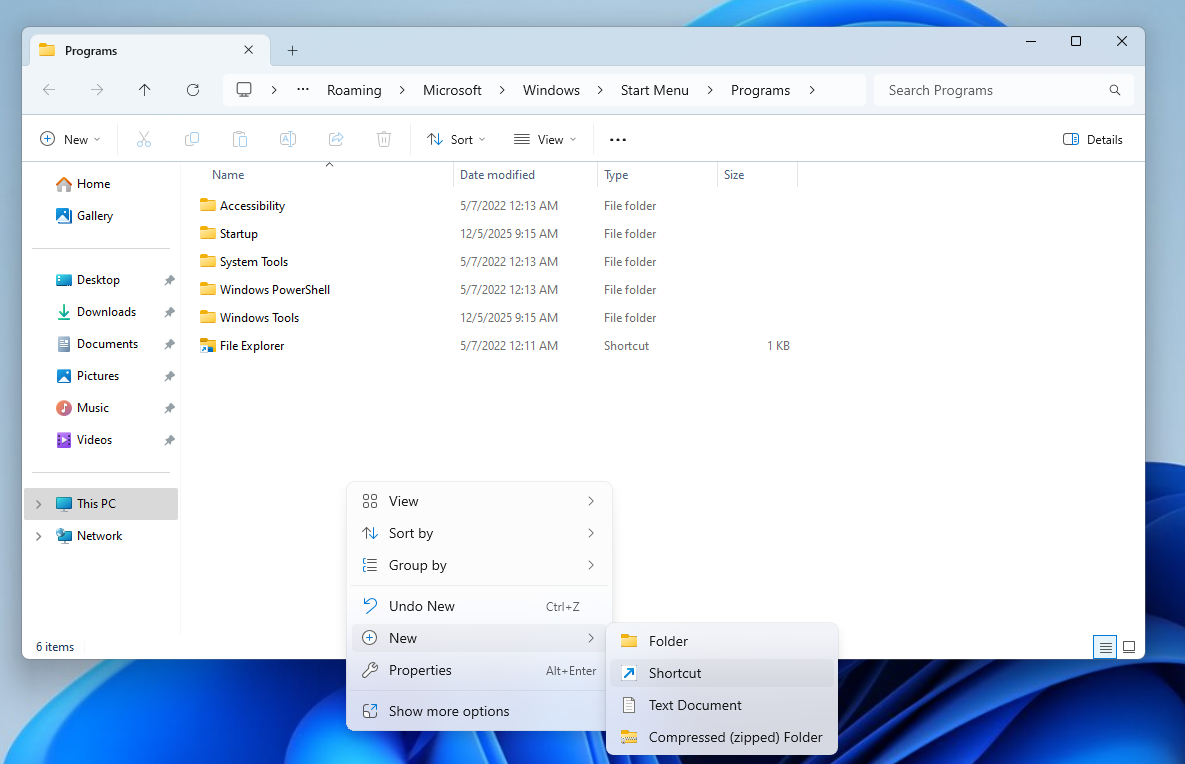
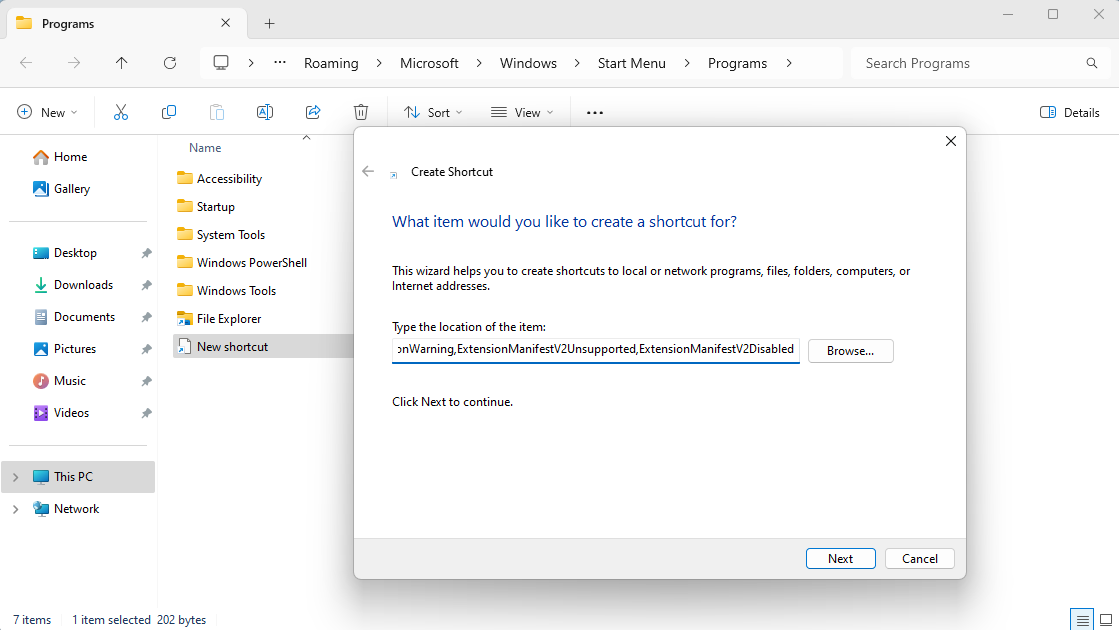
Right-click in the folder. Select New -> Shortcut. Paste the text below for the location. Click Ok, then click Next.
%USERPROFILE%\chrome2.exe --disable-features=ExtensionManifestV2Deprecation,ExtensionManifestV2DeprecationWarning,ExtensionManifestV2Unsupported,ExtensionManifestV2Disabled
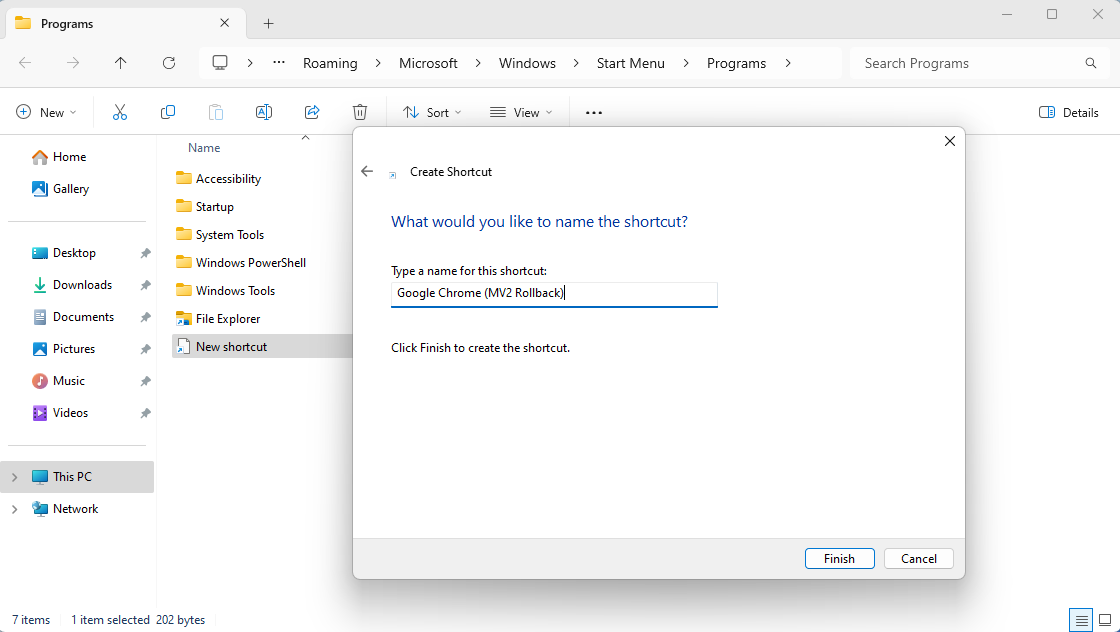
Name your shortcut whatever you want. Then click Finish. I named mine Google Chrome (MV2 Rollback).
You will now have a fully functional shortcut, but it won’t have an icon. Let’s give it one! Right-click on the new shortcut and select Properties. Under the Shortcut tab, select Change Icon (it’s the middle button near the bottom). Below, I will show how to set it to the same icon that Chrome uses. You can optionally select a different icon instead.
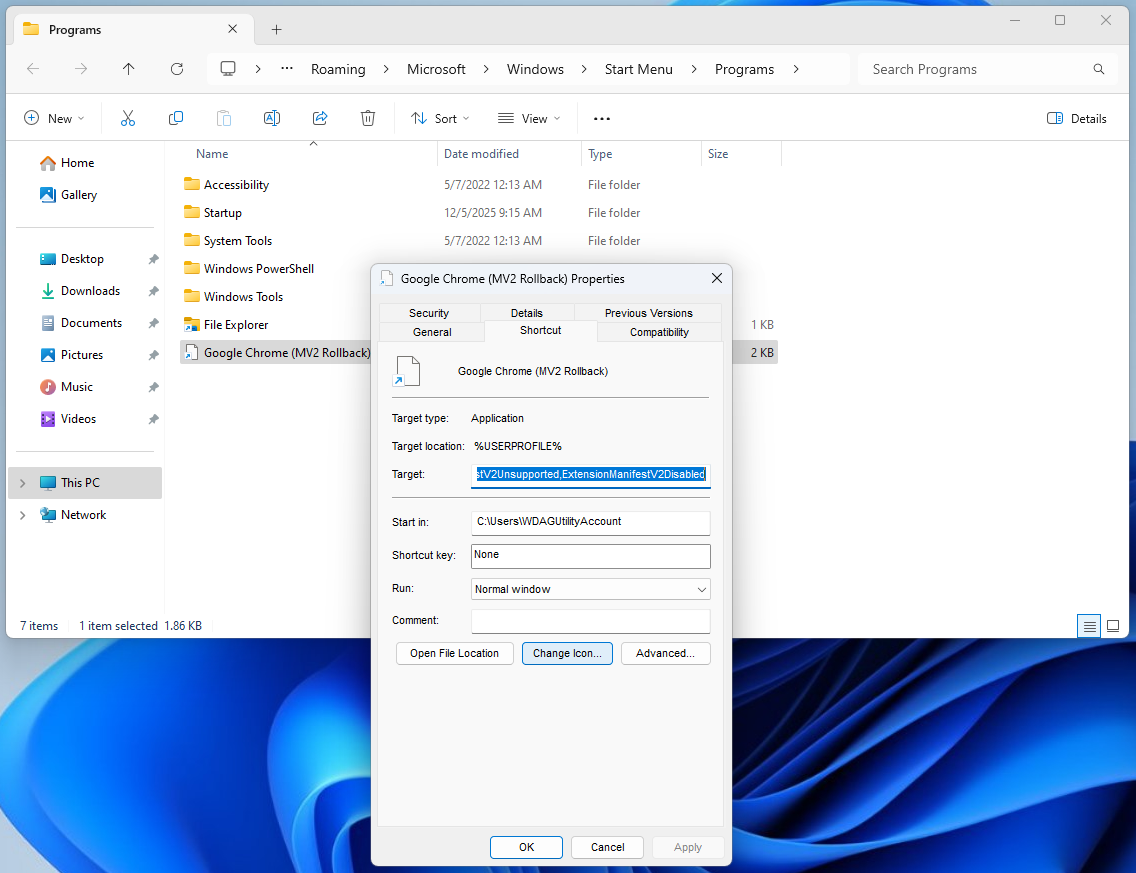
Under Look for icons in this file, paste the following:
C:\Program Files\Google\Chrome\Application\chrome.exe
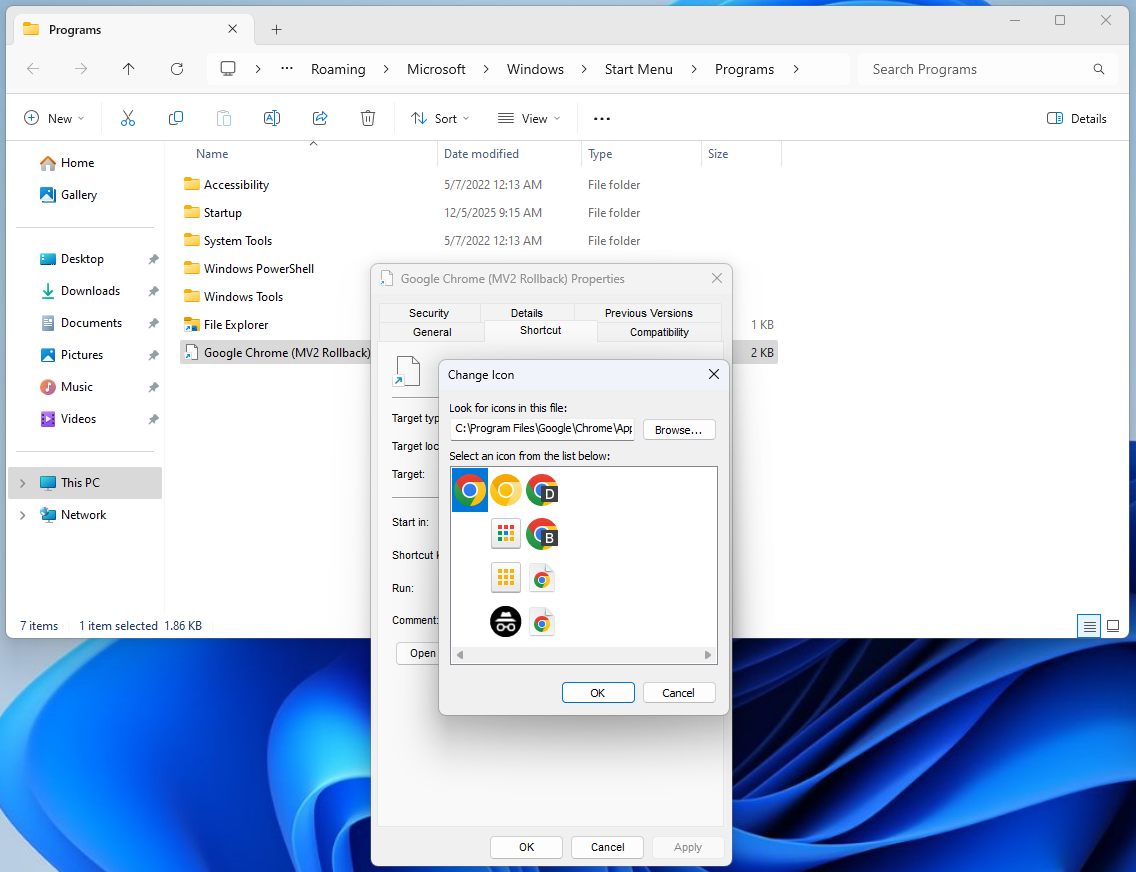
Click Ok to accept the new icon. The properties should look similar to this:
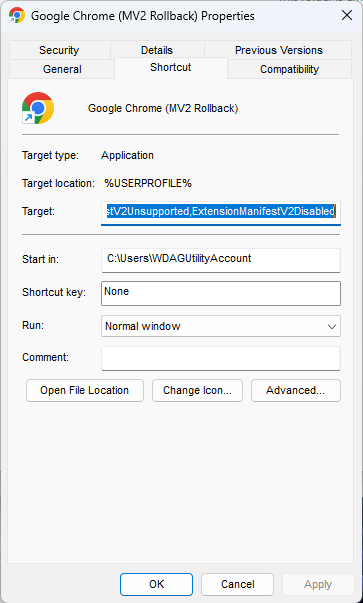
Click Ok to close out of the properties dialog. Optionally copy the new shortcut to your desktop for easy access. Do not drag and drop, as this will move instead of copy.
Caution: Do not drag and drop the shortcut to your desktop. This will move the file causing it not to appear in the start menu.
3. Launch Chrome
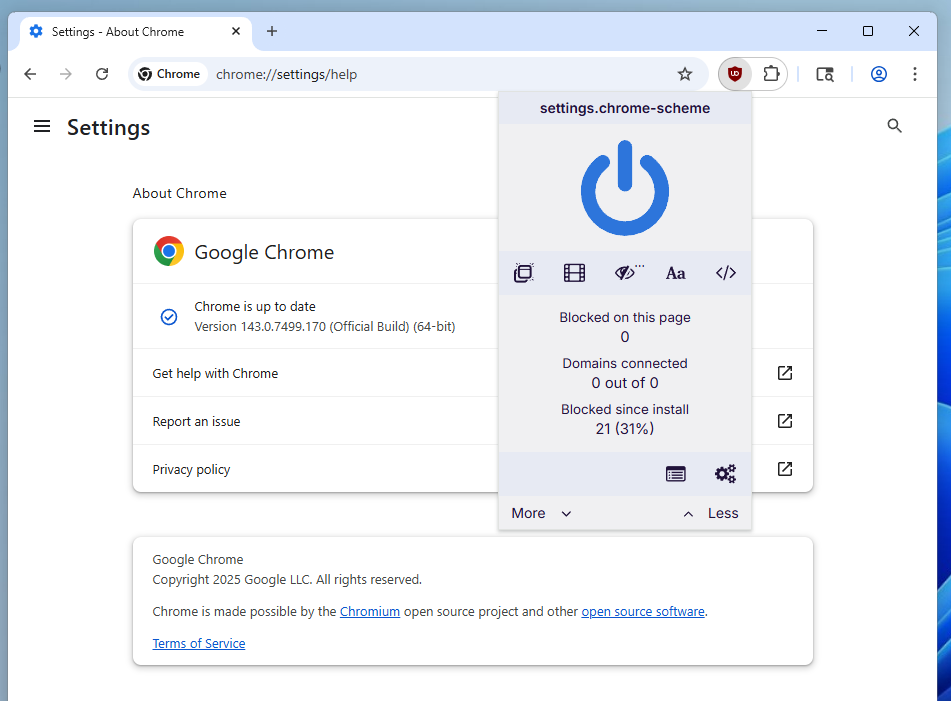
Open your start menu. You should see a new entry called Google Chrome (MV2 Rollback) or whatever you named it, perhaps chrome2. Close out of all open Chrome windows, launch Chrome using the new shortcut, then reinstall uBlock Origin from the Chrome Web Store.
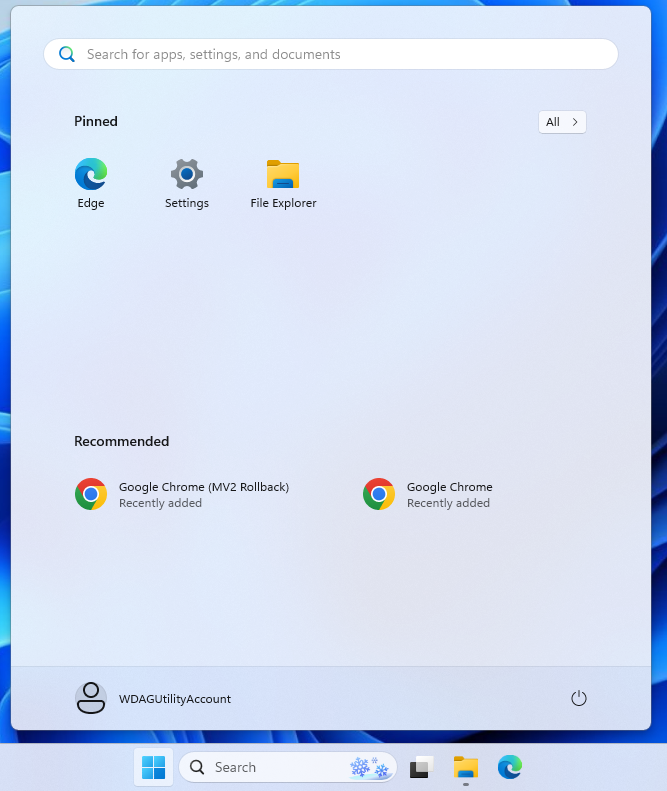
Important: Make sure you close out of all open Chrome windows before relaunching. Otherwise, it won’t work!
Linux
On Linux, we will create a new shortcut that launches Chrome with the command-line arguments specified above. We will preserve the old shortcut in case there are issues with the new shortcut down the road. I have tested this on Ubuntu 24.04.3 LTS, but it should work on other distros as well.
Note: Linux (unlike Windows) does not require a symbolic link.
1. Create Shortcut
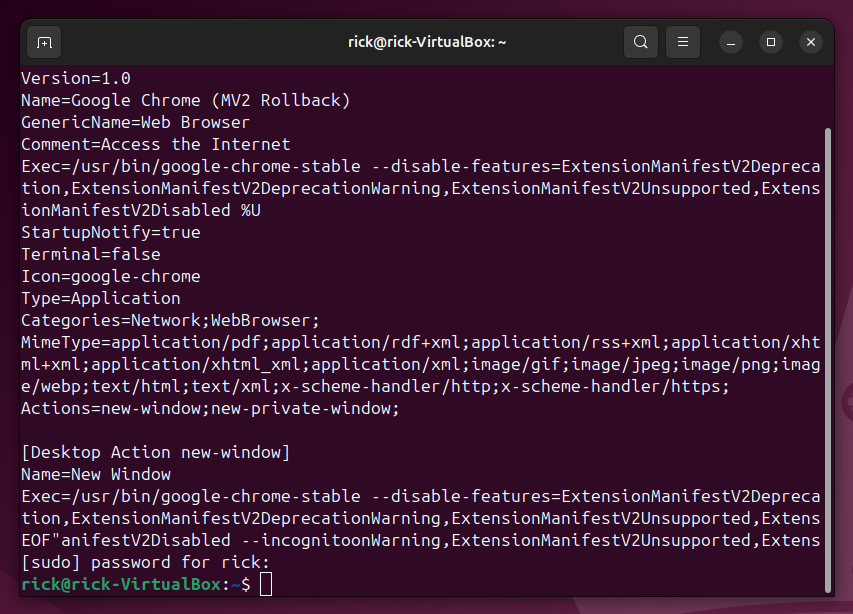
Open the Terminal. Copy and paste the following command. Use CTRL+SHIFT+V or right-click to paste the text into the terminal window. Press the ENTER key on your keyboard. Enter your password for sudo when prompted.
sudo bash -c "cat << EOF > /usr/share/applications/google-chrome2.desktop
[Desktop Entry]
Version=1.0
Name=Google Chrome (MV2 Rollback)
GenericName=Web Browser
Comment=Access the Internet
Exec=/usr/bin/google-chrome-stable --disable-features=ExtensionManifestV2Deprecation,ExtensionManifestV2DeprecationWarning,ExtensionManifestV2Unsupported,ExtensionManifestV2Disabled %U
StartupNotify=true
Terminal=false
Icon=google-chrome
Type=Application
Categories=Network;WebBrowser;
MimeType=application/pdf;application/rdf+xml;application/rss+xml;application/xhtml+xml;application/xhtml_xml;application/xml;image/gif;image/jpeg;image/png;image/webp;text/html;text/xml;x-scheme-handler/http;x-scheme-handler/https;
Actions=new-window;new-private-window;

[Desktop Action new-window]
Name=New Window
Exec=/usr/bin/google-chrome-stable --disable-features=ExtensionManifestV2Deprecation,ExtensionManifestV2DeprecationWarning,ExtensionManifestV2Unsupported,ExtensionManifestV2Disabled

[Desktop Action new-private-window]
Name=New Incognito Window
Exec=/usr/bin/google-chrome-stable --disable-features=ExtensionManifestV2Deprecation,ExtensionManifestV2DeprecationWarning,ExtensionManifestV2Unsupported,ExtensionManifestV2Disabled --incognito
EOF"
This will create a new desktop shortcut, name it, give it the Google Chrome icon, and place it on the Linux equivalent of the start menu all in one step. It’s amazing what you can accomplish with just one command in Linux.
2. Launch Chrome
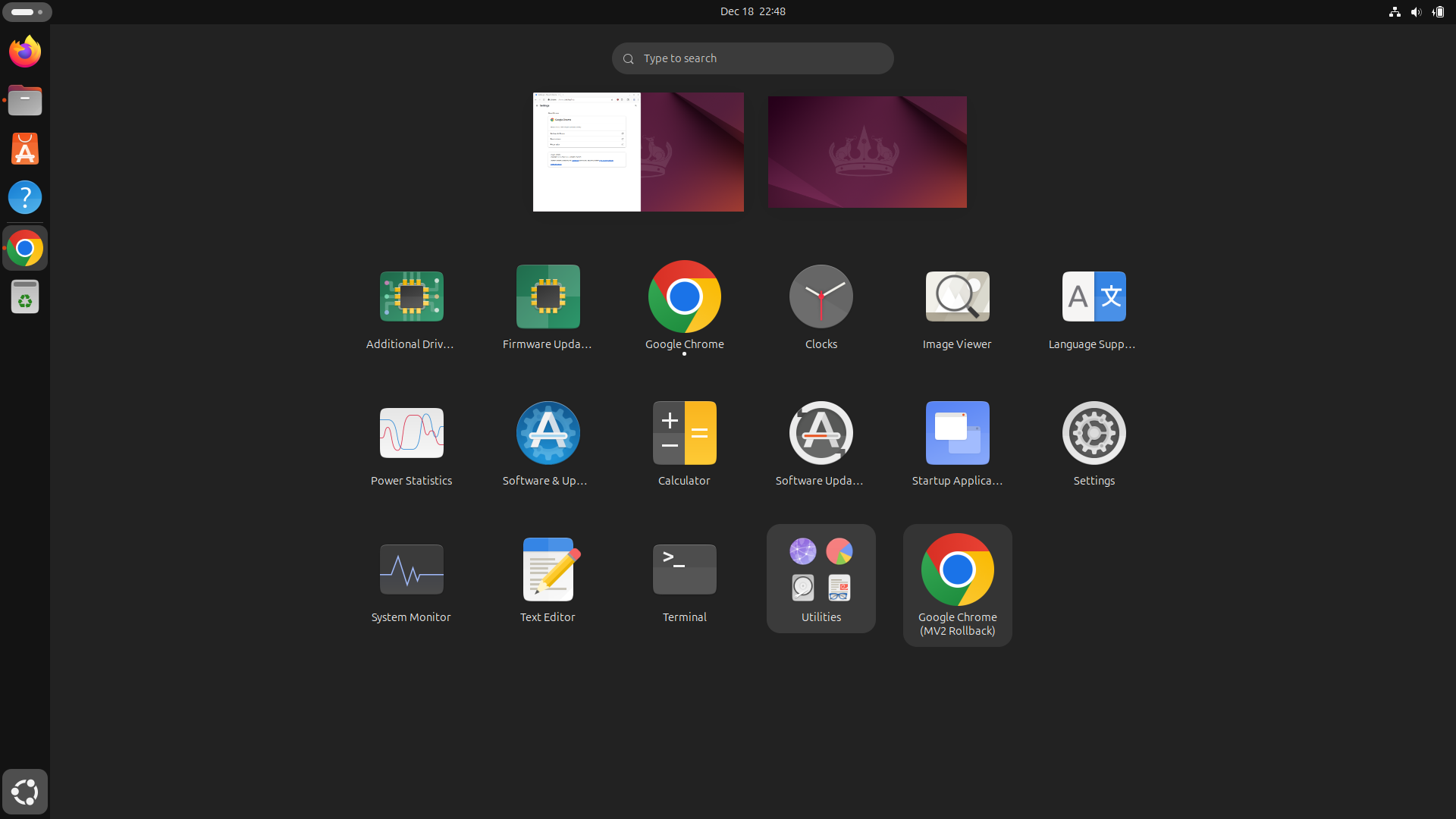
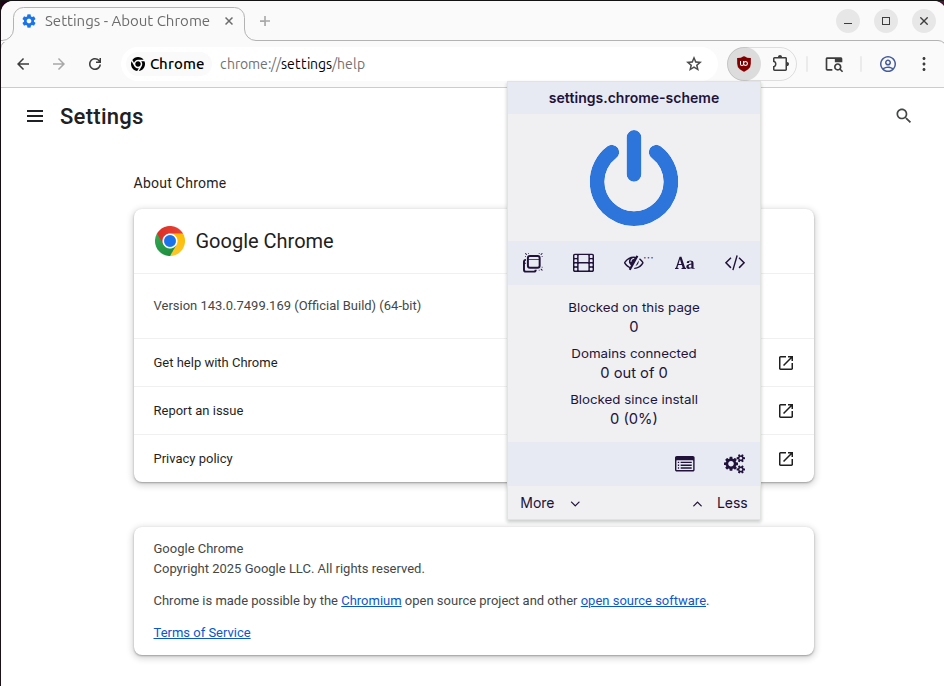
Open your start menu. You should see a new entry called Google Chrome (MV2 Rollback). Close out of all open Chrome windows, launch Chrome using the new shortcut, then reinstall uBlock Origin from the Chrome Web Store.
Important: Make sure you close out of all open Chrome windows before relaunching. Otherwise, it won’t work!
How Was This Discovered?
I did not discover this glitch. One day, I was reading online about uBlock Origin and came across a Reddit post about it.
Likely, someone else discovered it through reverse-engineering. Interestingly enough, if you run the strings command on the /opt/google/chrome/chrome binary on a Linux machine, it will output all the command-line arguments we’ve been using:
me@my-computer:/opt/google/chrome$ strings chrome | grep ManifestV2
ExtensionManifestV2ExceptionList
ManifestV2ExperimentManager
ExtensionManifestV2Deprecation
ExtensionManifestV2DeprecationWarning
ExtensionManifestV2Unsupported
ExtensionManifestV2Disabled
ExtensionManifestV2Availability
How Long Will This Work?
I’ve been using this trick since June, 2025 with no issues, and it still works as of writing. However, it likely won’t last forever. It could break tomorrow, it could break 10 years from now. Nobody really knows.
My guess is that it will continue to work until other Chromium-based browsers (such as Microsoft Edge, which has no clear timeline for deprecating Manifest V2), follow suit. However, Google could be unpredictable and pull support before other browsers do.
Therefore, my advice is:
Just switch to Firefox.
Mozilla, unlike Google, has no plans to deprecate Manifest V2. And even then, if Manifest V2 is someday removed from Firefox, Mozilla’s implementation of Manifest V3 will keep webRequestBlocking, so uBlock Origin will still continue to function and be fully compatible with Firefox.